

Download Logitech Gaming Software – Free, Secure, Customizable Gaming Tool
Overview
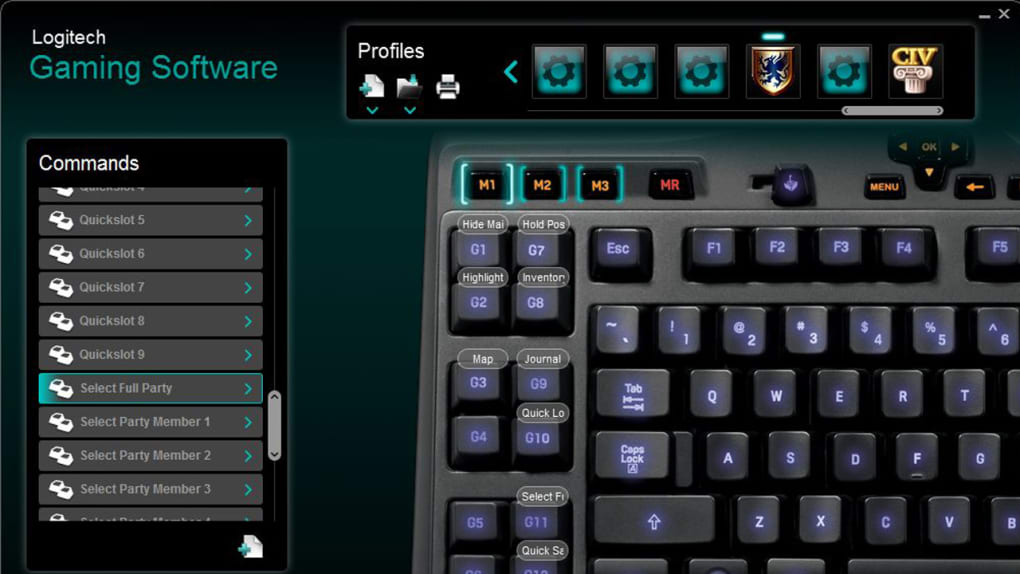
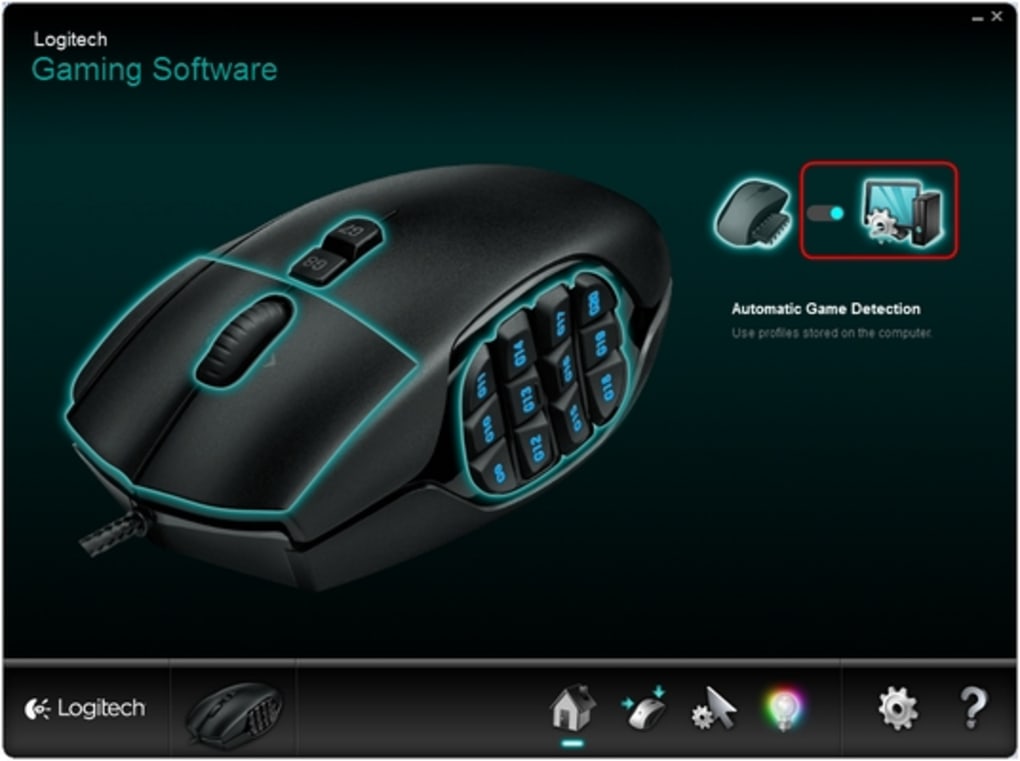
Logitech Gaming Software (LGS) is the official companion application that lets you take full control of every Logitech gaming peripheral you own – from high‑end mice and keyboards to steering wheels, headsets, and even the newer Arc Control app for mobile devices. The program provides a clean, intuitive interface where you can fine‑tune DPI settings, customize lighting, program macro commands, and assign game‑specific profiles. By linking a profile to a particular title, LGS automatically swaps the configuration the moment you launch the game, ensuring you always have the optimal setup without manual adjustments.
While the learning curve can feel a little steep for newcomers, the payoff is significant for gamers who juggle multiple Logitech devices. Whether you are a competitive FPS player seeking sub‑millisecond click response, a MMO enthusiast needing complex macro chains, or a casual racer looking for precise wheel feedback, LGS consolidates all those tweaks into a single, secure dashboard. The software is free to download, regularly updated by Logitech, and works in harmony with the Arc Control app on Android and iOS, giving you remote monitoring of your PC’s performance from a mobile device.
In short, Logitech Gaming Software is a powerful, all‑in‑one toolkit that transforms raw hardware into a personalized gaming engine.
Key Features & Capabilities
- Device Detection & Management – Auto‑detects all connected Logitech gaming peripherals and groups them for easy configuration.
- Profile Engine – Create unlimited profiles, assign them to specific games, and let LGS switch automatically on launch.
- Macro Builder – Record keystrokes, mouse clicks, and delays; save as macros for use in any supported device.
- Lighting Customization – Full RGB control with per‑zone color, breathing effects, and synchronization across multiple devices.
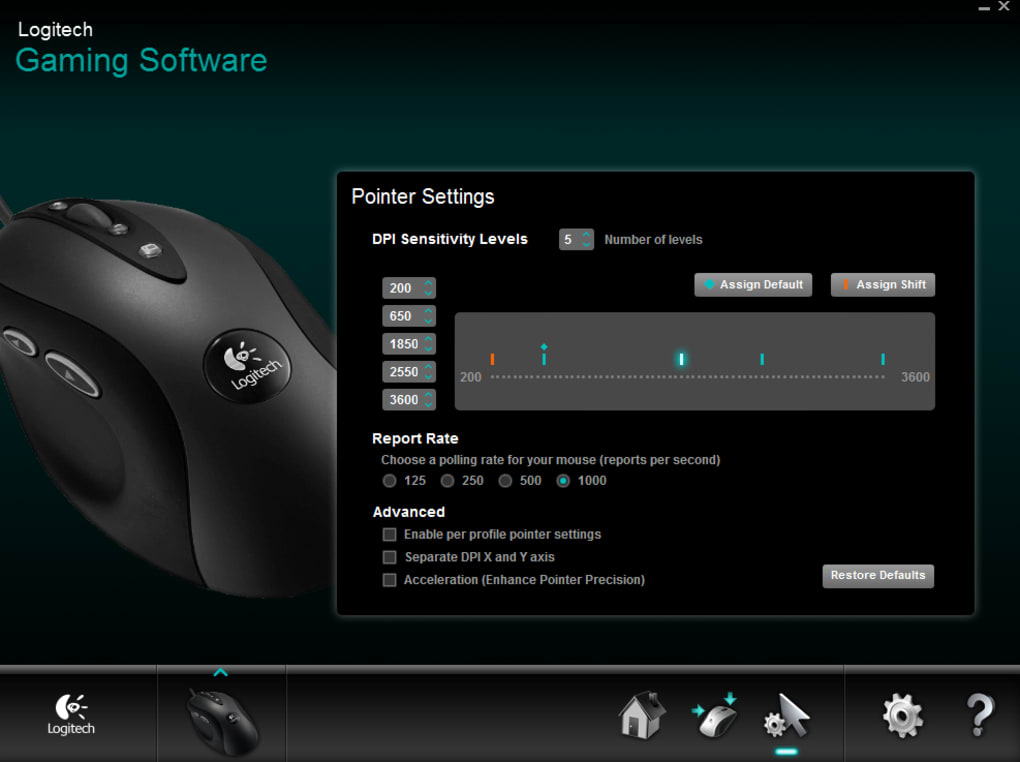
- Advanced DPI & Sensitivity Settings – Set multiple DPI stages, fine‑tune acceleration curves, and bind DPI switches to mouse buttons.
- Audio & Voice Settings – Adjust headset EQ, enable surround sound, and map chat‑mute shortcuts.
- Arc Control Integration – Monitor PC performance, adjust fan curves, and switch profiles from Android or iOS.
- Automatic Firmware Updates – Keep peripherals up‑to‑date with one‑click firmware flashing.
- Community Sharing – Export and import profile files to share setups with friends or download community‑crafted configurations.
- Secure & Free – No hidden fees, no ads, and all data stays on your machine.
Installation, Setup, and Everyday Use
Step‑by‑Step Installation
1. Visit the official Logitech website and locate the Logitech Gaming Software download page. Choose the Windows or macOS installer that matches your operating system.
2.
Run the installer and follow the on‑screen prompts. The wizard will request administrative permission to install drivers – this is required for low‑level device communication.
3. After installation, reboot your computer to ensure all drivers load correctly.
First‑Run Configuration
When LGS launches for the first time, it scans every USB port for supported Logitech devices. Each detected device appears as a tile on the main dashboard. Click a tile to open the device‑specific settings panel. Here you can rename the device, assign it to a “gaming group,” and enable auto‑update for firmware.
Creating a Game Profile
Navigate to the Profiles tab and click “Create New.” Name the profile after your game (e.g., “Valorant”) and select the devices you want to include. Inside the profile editor you can:
- Adjust DPI steps for mice.
- Set RGB lighting patterns that match your game’s aesthetic.
- Program macro sequences for keyboard shortcuts or mouse clicks.
- Enable “Launch Application” – LGS will start the game executable when you switch to the profile.
After saving, go to the Profile Linking section and drag the newly created profile onto the game’s icon in the Application List. From now on, launching the game will automatically activate the associated profile.
Everyday Usage Tips
• Use the Quick Switch hotkey (default Ctrl + Shift + F1) to toggle between two favorite profiles without leaving the game.
• Leverage the Macro Recorder to capture complex key sequences – perfect for MMOs where you need to execute combo chains quickly.
• Keep the Arc Control app on your phone to monitor CPU temperature while gaming on a laptop; you can adjust fan curves on the fly.
Overall, the installation process takes less than five minutes, and the intuitive layout reduces the learning curve dramatically after the initial exploration.
Compatibility, Pros & Cons
Supported Operating Systems: Windows 10, Windows 11, macOS 10.13 (High Sierra) and later. The software also communicates with the Arc Control mobile app on Android 6.0+ and iOS 11+.
Pros
- Comprehensive device support – works with most Logitech gaming peripherals.
- Free, no subscription required; regular updates keep it current.
- Deep customization: DPI, lighting, macros, and game‑specific profiles.
- Automatic profile switching saves time and eliminates manual errors.
- Integration with mobile Arc Control adds remote monitoring capabilities.
Cons
- Interface feels dated compared to newer competitors like Logitech G HUB.
- Initial setup can be overwhelming for beginners.
- Limited cloud sync – profiles are stored locally, requiring manual backup.
- Some advanced features (e.g., per‑key RGB) are only available on the latest hardware.
- Occasional minor bugs when switching between Windows updates.
Overall Rating: 4 out of 5 stars – Logitech Gaming Software delivers a robust, free solution for gamers who demand precise control over their hardware, despite a UI that could use a modern refresh.
Frequently Asked Questions
Is Logitech Gaming Software still receiving updates?
Yes. Logitech releases regular patches that improve device compatibility, fix bugs, and add minor feature enhancements. You can enable automatic updates within the application’s settings.
Can I use Logitech Gaming Software on a Mac?
Absolutely. A macOS version is available for free and supports most Logitech gaming mice, keyboards, and headsets. Some Windows‑only features, like certain lighting effects, may be limited on macOS.
Do I need an internet connection to use LGS?
Only for initial download, firmware updates, and cloud‑based profile sharing. Once installed, all core features work offline, making it ideal for gaming on restricted networks.
How does LGS differ from Logitech G HUB?
LGS is the legacy software focused on stability and broad device support, while G HUB targets newer hardware with a more modern UI and advanced lighting synchronization. Both are free; users can choose based on device compatibility and personal preference.
Can I export my profiles to another computer?
Yes. Profiles are saved as .lgp files. Use the “Export” button in the profile manager, copy the file to another PC, and import it via the “Import” option.
Conclusion & Call to Action
Logitech Gaming Software remains a solid, free solution for gamers who want granular control over their Logitech peripherals without the overhead of a subscription. Its profile engine, macro builder, and lighting editor give you the tools to craft a truly personalized gaming experience. While the interface may feel a little dated compared with Logitech’s newer G HUB, the stability, extensive device support, and seamless integration with the Arc Control mobile app make LGS an indispensable utility for serious gamers.
If you already own a Logitech mouse, keyboard, or headset, downloading and configuring LGS is a straightforward way to extract every ounce of performance from your gear. Ready to boost your game? Download Logitech Gaming Software now and start building your custom profiles today.







